
Capabilities
What it helps you do
Short and practical, no buzzwords. Each card pairs the idea with a matching screenshot from this site’s gallery.
Revo is strongest when standard removal leaves folders, services, or autorun entries behind. The goal is not “more deletion,” but clearer visibility into what still references an app you thought was gone.
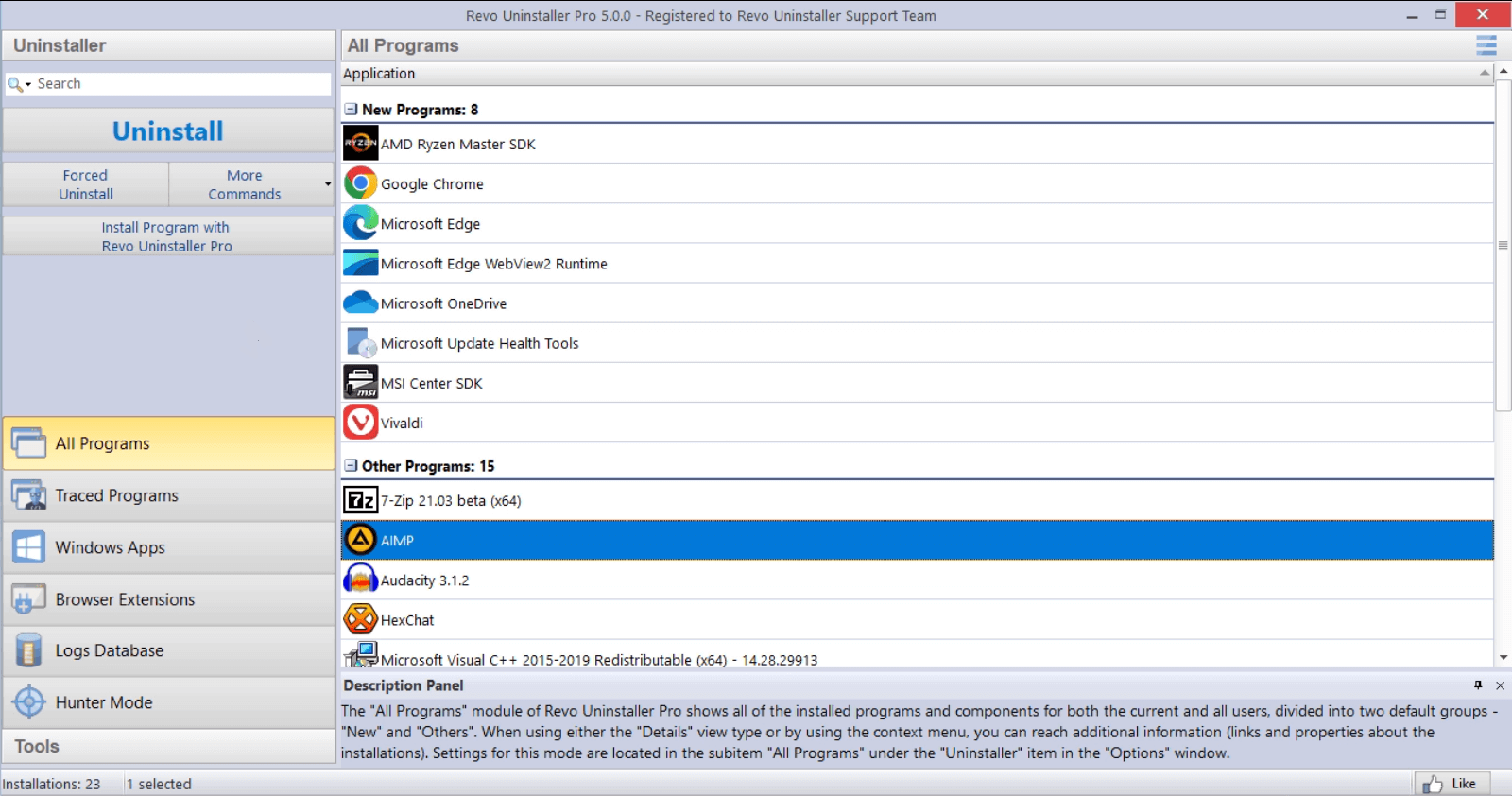
Leftover scan
After the normal uninstaller finishes, search for stray files and registry keys. Start with a gentle mode; move up only when you know what you are deleting.
- Safe | widest net, lowest risk; best while you are still learning what “shared” looks like on your PC.
- Moderate | when the vendor uninstaller already looked unreliable or half-finished.
- Advanced | only with backups; expect noise from other software using similar paths.
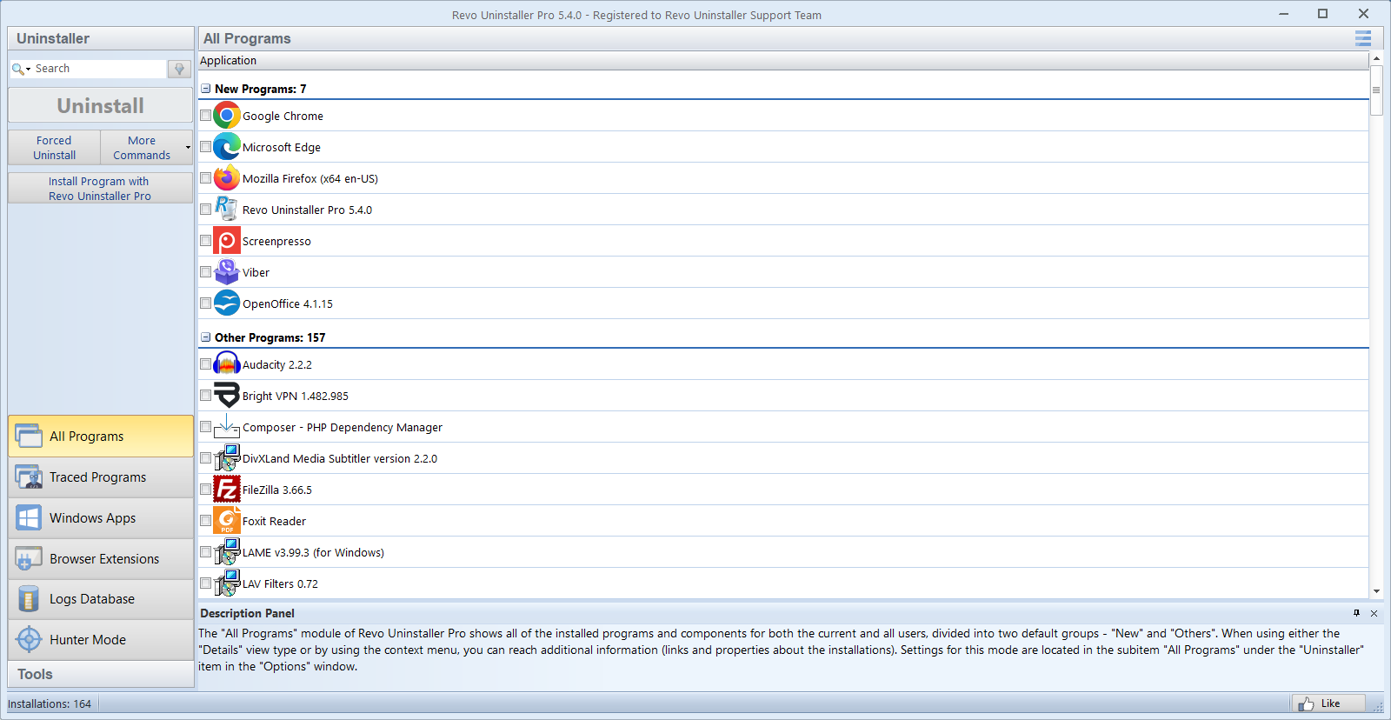
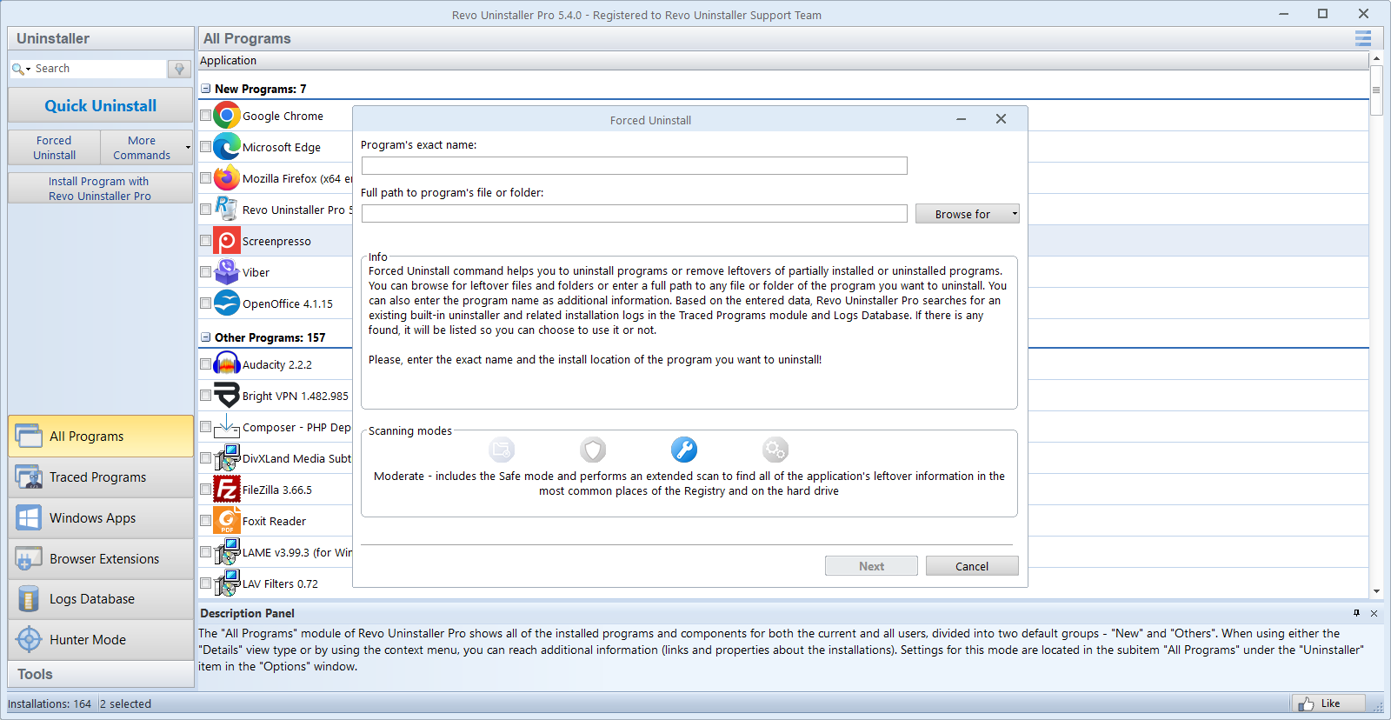
Forced uninstall
For broken entries or installers that will not start: detach the app, then clean up with a careful leftover pass.
Use it when Add/Remove shows the program but the uninstaller is missing, crashes immediately, or the MSI source path is gone. After forced removal, treat the leftover list as hints, not a shopping list to delete in bulk.
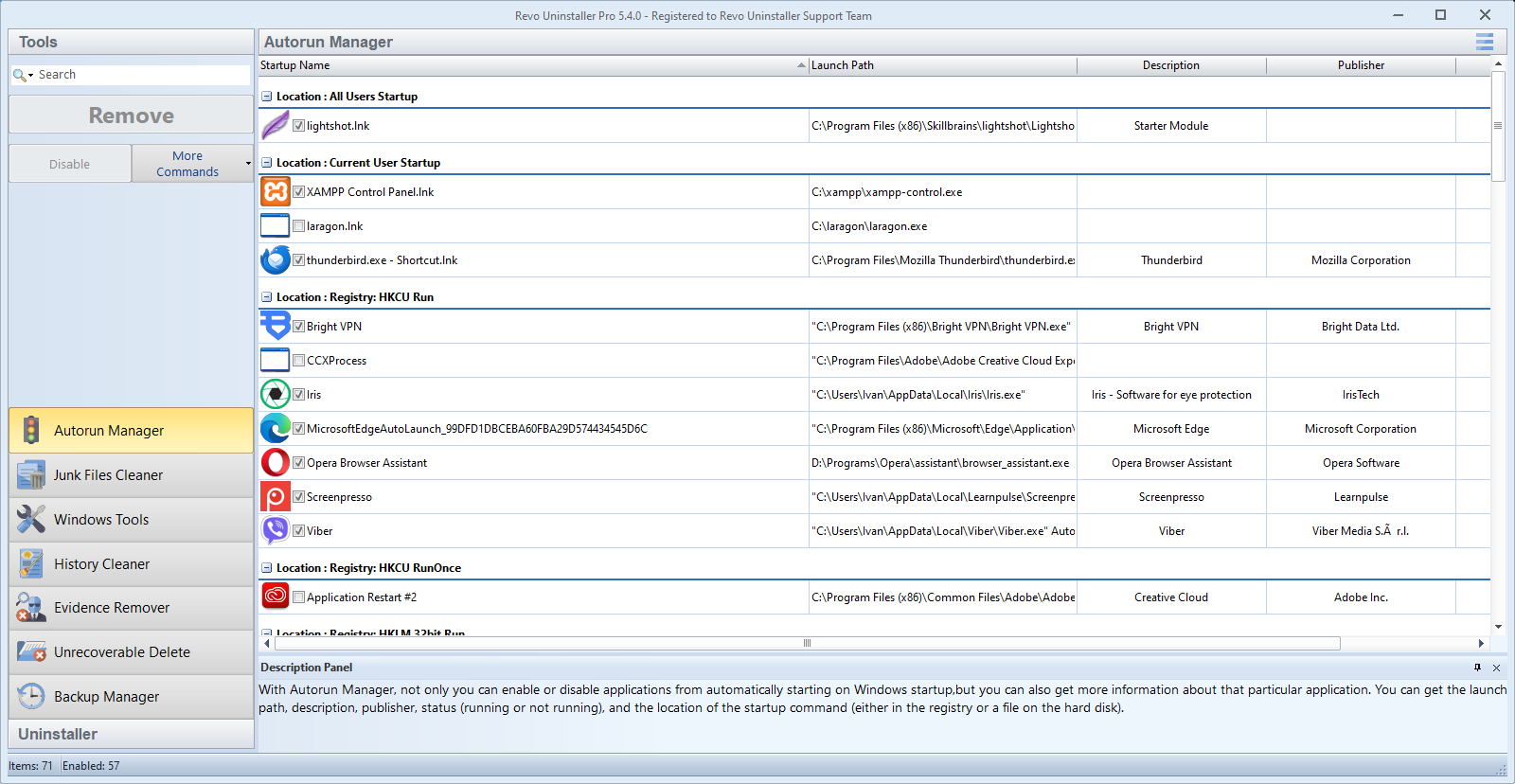
Startup & junk
Trim autorun noise and temporary clutter so the machine feels lighter day to day.
App Manager and junk tools complement uninstalls: many “ghost” performance issues are just updaters and tray helpers you no longer need. Disable or remove them only after you confirm which executable they launch.
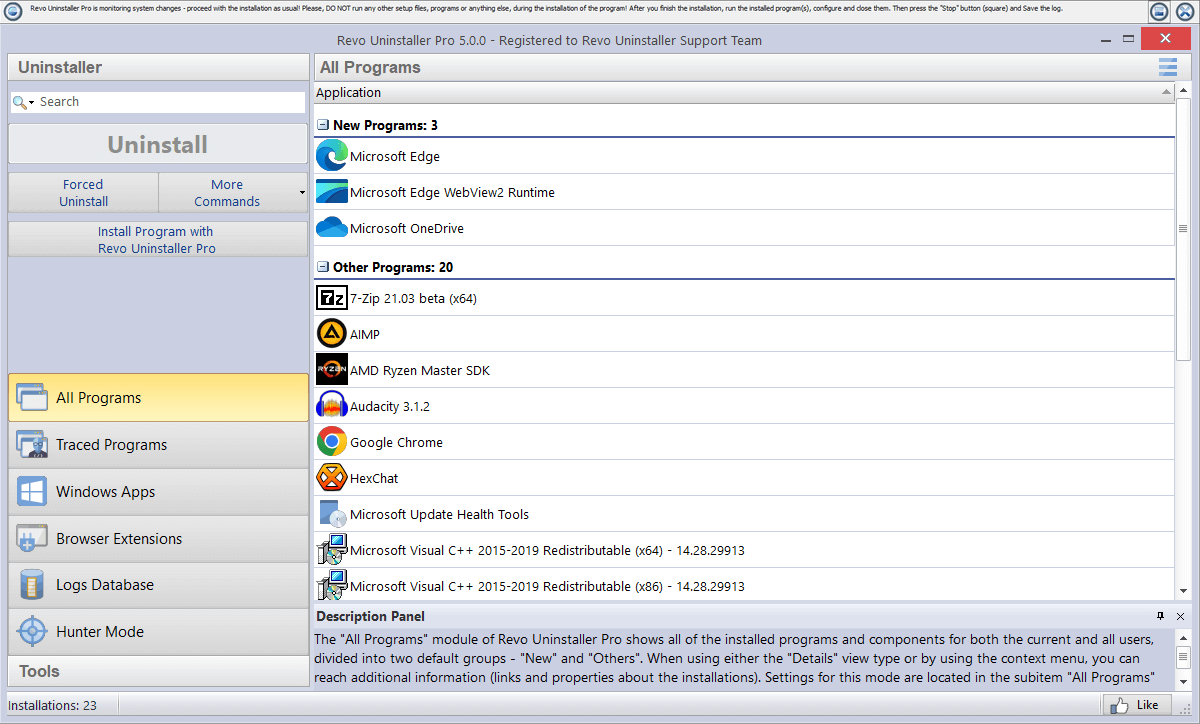
Logs
Keep a record of what was removed, handy for shared PCs and repeat installs.
Logs help when the same trial software gets reinstalled every month, or when you need to prove to IT or a family member which version was actually removed. Export or screenshot critical sessions if you maintain several machines.
Safety habit
Read each line. If a path might be shared, leave it. Restore points before aggressive scans.
- Never bulk-select “delete all” on the first pass.
- Reboot once after the vendor’s uninstall before judging errors or disk space.
- When in doubt, search the path in your browser or ask in a forum with the exact string.
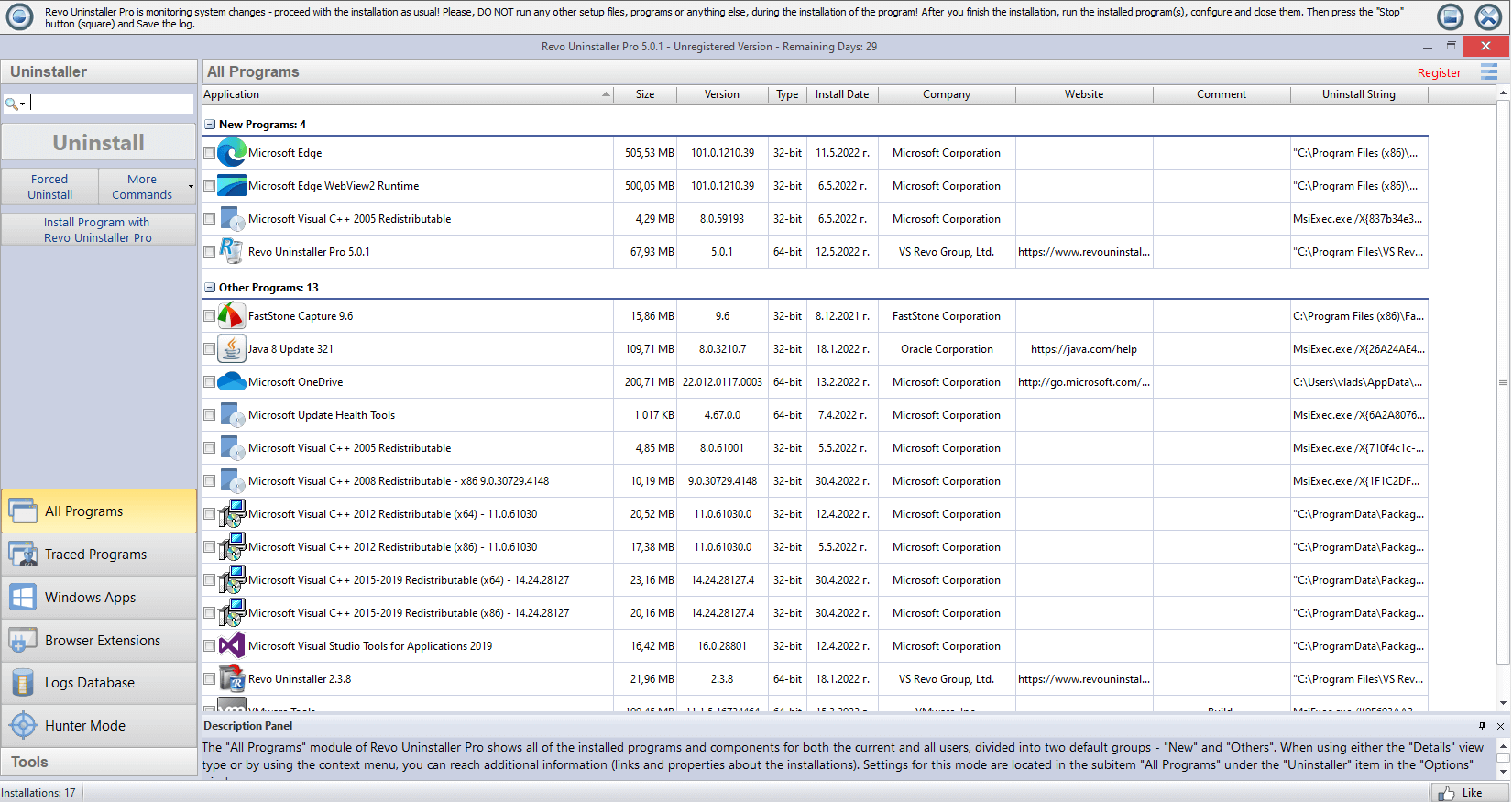
Free vs Pro
Free covers many one-off jobs; Pro saves time if you batch uninstall or support several computers.
Pro-oriented conveniences usually include faster multi-app workflows, command-line or scripting hooks (depending on version), and deeper automation for technicians. For a single stubborn app once a year, Free is often enough; just budget more time for manual review.
Hunter mode (quick mental model)
Hunter lets you drag a target onto a live window or tray icon and jump straight to the uninstall entry or related process. It is built for “what is this popup?” moments, not for aiming at random desktop chrome.
Confirm the process name in Task Manager when the target is ambiguous. System components and shell extensions can look like normal apps; if Hunter points at something you do not recognize, research before removing.
Recommended workflow (condensed)
- 1Snapshot safety | Create a restore point (or ensure your backup tool is current).
- 2Vendor first | Run the program’s own uninstaller or Windows’ entry when it still works.
- 3Reboot if asked | Pending file operations often block the next steps.
- 4Leftover scan | Start in Safe mode; expand only when you understand the hits.
- 5Follow-up | Check Startup, Scheduled Tasks, and Services for stragglers with the same publisher name.
When Revo earns its place
Reach for it when the program list shows an app but its uninstaller is missing, crashes, or finishes while folders and services remain. It also helps on shared PCs where you need a written trail of what was removed and when.
- Bundled toolbars, updaters, and trial security suites that respawn after “uninstall.”
- Developer machines with multiple runtimes where you must not delete the one build tools still need.
- Preparing a laptop for resale after uninstalling finance or VPN software.
What Windows already handles
Settings and Control Panel remove the primary application registration for many programs. That is often enough for small utilities with a single install folder and no background services.
Skip deep scans when the vendor uninstaller completed cleanly, disk space looks right, and Task Manager shows no stray processes. Use Revo to investigate odd behavior, not as a ritual after every removal.
Quick fixes
Straight steps you can follow, same spirit as cleaning up space and stubborn installers on a real PC.
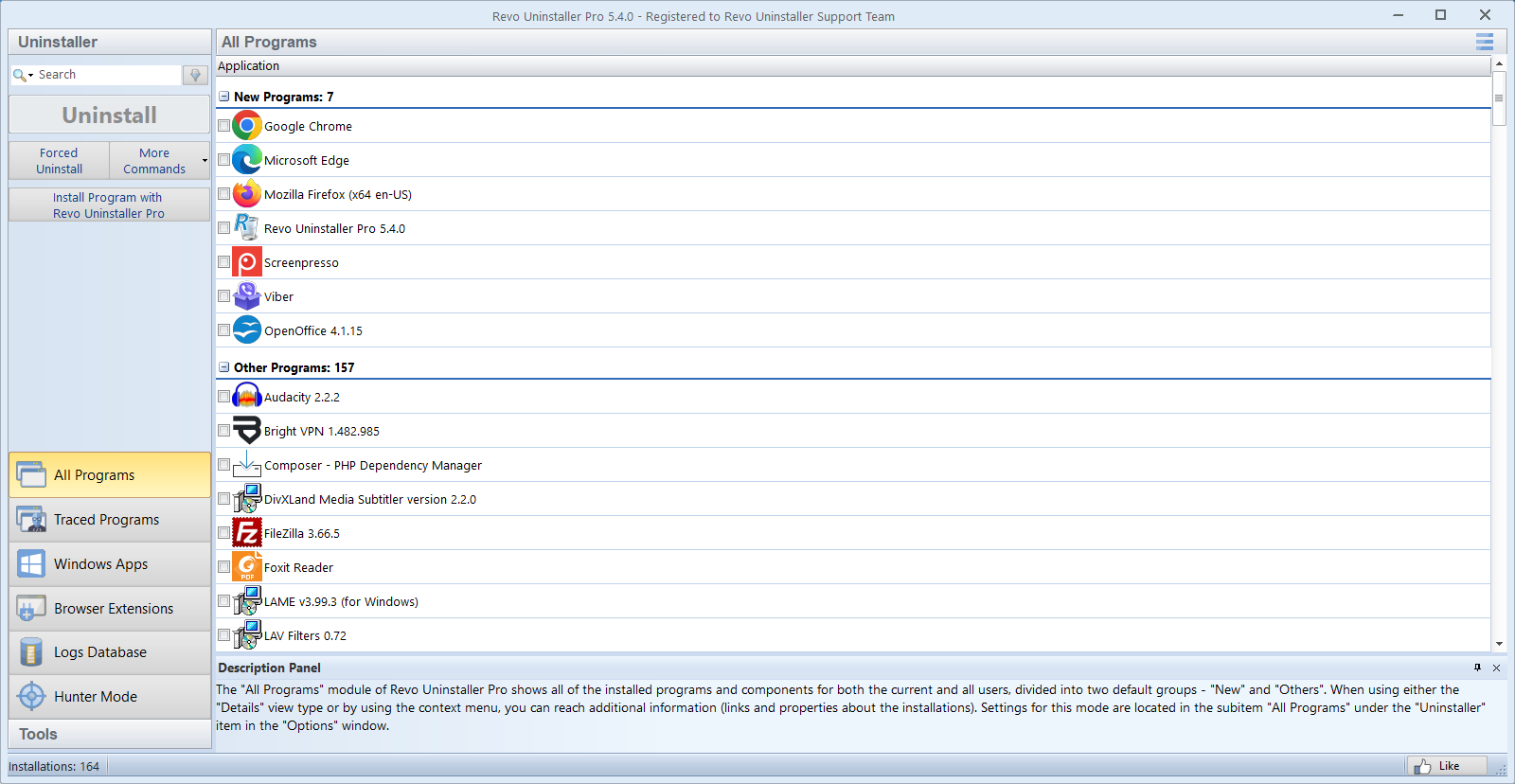
“Error 1316” / missing MSI
- Try the same installer version from your archives.
- Repair, then uninstall again.
- If still stuck: forced uninstall, then moderate leftovers; avoid shared VC++ runtimes.
Space not coming back
- Empty Recycle Bin; clear browser cache separately.
- Look under
AppDataandProgramData. - Run junk cleanup only after a backup or restore point.
Managed work PC
Follow IT policy first. Revo can still help identify which process owns a window before you open a ticket.
Stay stable
Restore point first. Reboot after big suite removals before judging speed or errors.
“Another installer is running”
Close other setup wizards, reboot, then retry. If a stale msiexec hangs, note the PID in Task Manager before ending it, only when you are sure no legitimate install is active.
Browser extensions that reinstall
Remove the extension inside the browser and the Windows program that keeps pushing it. Use Hunter or Startup tools to catch the helper executable, then uninstall from the list before a final leftover pass.
Store apps vs desktop programs
Microsoft Store packages use a different pipeline than classic Win32 installers. If Settings refuses to remove a Store app, try repair, then reset, then uninstall. Revo is most common for traditional installers and their leftovers, not as a substitute for winget or Store repair flows.
Low disk space after “cleanup” apps
Some optimizers quarantine files but do not shrink the volume until you empty their vault or the Recycle Bin. After uninstalling the optimizer itself, search ProgramData and the user profile for large cache folders tied to the old vendor name before running a conservative junk pass.
More narrative write-ups live on Blogs · FAQ for common objections.