
Deep dive · 18 min
Leftover scan modes: which to use?
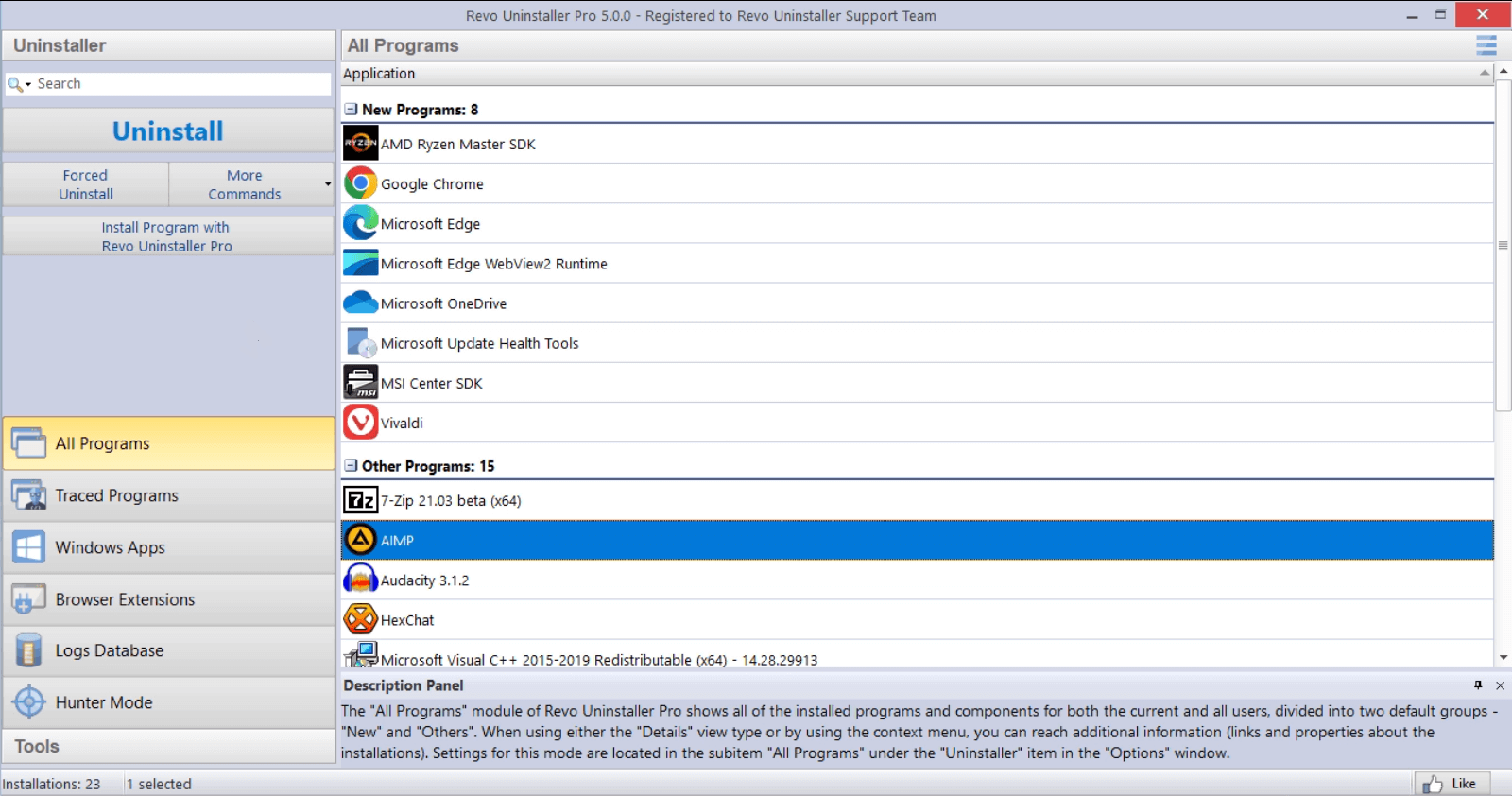
Scan modes trade thoroughness against noise. They do not change how careful you need to be; they change how many candidate leftovers Revo surfaces for you to read before you delete anything.
Safe is your default when you are still building intuition: it tends to surface paths and keys that clearly reference the vendor or product name. You will miss some edge-case debris, but you also avoid fighting shared runtimes.
Move to Moderate when the stock uninstaller failed halfway, left services running, or the program folder still exists after “successful” removal. Expect more rows to review; budget time, not clicks.
Advanced belongs next to disk images and backups. It can flag items that are technically “related” but still required by other apps. Never treat Advanced output as permission to select-all delete.
What you are really choosing
Think of each mode as a filter on “might belong to this uninstall.” Safe keeps the filter tight; Moderate widens it; Advanced widens it again and may include neighbors that share folders, DLL names, or registry hives with other software.
That is why the same app can look “almost clean” on Safe and “terrifyingly messy” on Advanced without the underlying PC changing at all. The leftovers were always there—you are just seeing more hypotheses.
Safe mode in practice
Use Safe after a normal uninstall completes and you want a second opinion. Sort mentally into three buckets: obvious junk (logs, empty folders under the vendor name), ambiguous paths (generic names under AppData), and anything that mentions another product you still use.
- Prefer deleting one vendor subtree at a time rather than cherry-picking scattered files.
- If a path sits under
Windows\WinSxSor looks like a Visual C++ runtime, pause—even Safe can surface edge cases on badly behaved installers. - When in doubt, search the path in your browser before deleting; five minutes of reading beats an afternoon of repair installs.
When Moderate earns its keep
Moderate is the sweet spot for trialware, updater frameworks, and “suite” uninstallers that leave behind a service or scheduled task. You will see more registry noise; read the key path and value name before ticking boxes.
Good habit: run the stock uninstall, reboot once, then scan. Many phantom entries disappear after Windows finishes pending operations. If you scan immediately while files are still locked, you may get a longer list that shrinks after restart.
Advanced: slow down, document, restore point
Advanced is for when you already know the app isolated its data under a predictable root, you have a restore point or image, and you are willing to read every line. Treat red/yellow flags as “investigate,” not “delete.”
Shared components (graphics tools, audio plugins, ODBC drivers) are the usual landmines. If removing them would break another product, leave them and remove only the application-specific tree.
Session hygiene
If you switch modes mid-session, note the timestamp in your personal log. That habit makes it easier to undo confusion weeks later when a coworker asks why a shared plugin vanished.
For repeat visits to the same machine, keep a one-line note per app: date, mode used, and “clean reboot yes/no.” Future you will thank present you.
Games, anti-cheat, and kernel helpers
Game clients and anti-cheat stacks often install drivers and services with generic-sounding names. After uninstalling the launcher, leftover scan results may still list kernel modules or user-mode services that belong to the anti-cheat vendor, not the game folder you just deleted.
Prefer the publisher’s own removal or repair tool when it exists, then scan at Safe or Moderate only after a reboot. Treat anything under well-known anti-cheat or GPU vendor paths as “research before delete,” even when the label looks like stray junk.
Common mistakes
- Select-all delete — The list is ranked suggestions, not a verdict. If you would not delete a path manually in Explorer, do not let bulk selection talk you into it.
- Skipping the reboot — Scanning while files are pending delete inflates noise and hides the true final state.
- Mode shopping without notes — Jumping Safe → Advanced in one sitting without writing down why makes rollback guesswork.
Related on this site
Pair scan discipline with a wider sweep: 12-point post-uninstall audit and Services that survive uninstall.