
Performance · 19 min
Services that survive uninstall
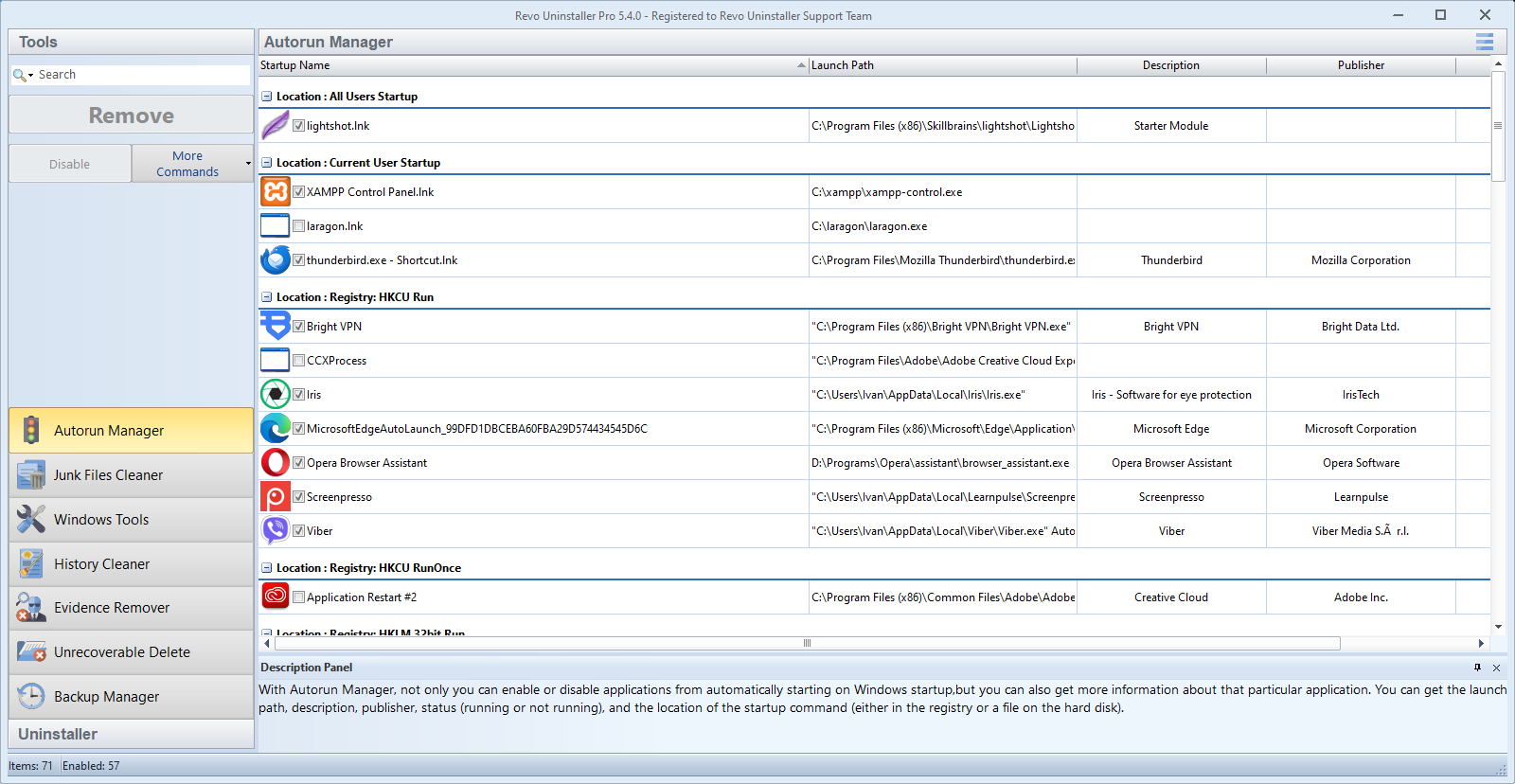
Developers love Windows services because they keep helpers alive after the main UI exits. That persistence is great for reliability and terrible for uninstall hygiene: the service can outlive the Add/Remove Programs row and keep waking CPU or disk at odd hours.
Identify the owner before you disable
After uninstall, open Services, sort by name or manufacturer, and look for the old product string. Cross-check the executable path in Task Manager’s Details tab before disabling; audio, print, and chipset vendors reuse similar display names.
If the path points under another product’s folder, stop—you are looking at a shared dependency. Document the service name, display name, binary path, and whether it is set to Automatic (Delayed Start) or triggered.
Services versus drivers
Some “services” are really thin wrappers around kernel drivers. Disabling the service may not unload the driver until reboot; conversely, deleting files while a driver is loaded can fail silently or destabilize the stack. When audio or GPU tooling is involved, reboot before you declare success.
If a service refuses to stop, note its PID, reboot into Safe Mode when policy allows, then remove the parent program entry again. Log everything if you are debugging a recurring reinstall loop.
Triggers, delayed start, and “idle” CPU
Delayed-start and trigger-started services can look idle in Task Manager while they still wake on events. Use the Services console’s “Startup Type” column together with Revo’s history so you know which uninstall session last touched them.
Pair service review with Task Scheduler: many vendors register a daily “telemetry” or update task with a different name than the service. The combo shows up in a fuller audit (12-point post-uninstall audit).
Safe rollback habits
Change startup type to Manual before you delete binaries, then reboot and verify nothing legitimate depends on the service. If a printer or audio endpoint breaks, you have a narrow change set to undo.
On shared PCs, announce maintenance windows before touching security or VPN services—even “obvious” leftovers might be the only tunnel IT expects to stay up.
Quick verification loop
After each change: note service state → reboot → confirm the process list no longer shows the old binary → run the workload that used to trigger the spike (print test page, audio test tone, VPN connect). One structured loop beats five random tweaks.
Event Viewer when you are stuck
If a service stops and immediately restarts, Windows Event Log (System and Application) sometimes names the supervising component or group policy refresh. Use it sparingly: export the small time window around the failure instead of scrolling entire logs.
When logs point at a driver still loaded at boot, you may need the vendor’s cleanup tool or a reinstall-then-proper-uninstall cycle—disabling the service alone will not unload a stubborn kernel module.