
Privacy · 19 min
Before you sell or gift a PC
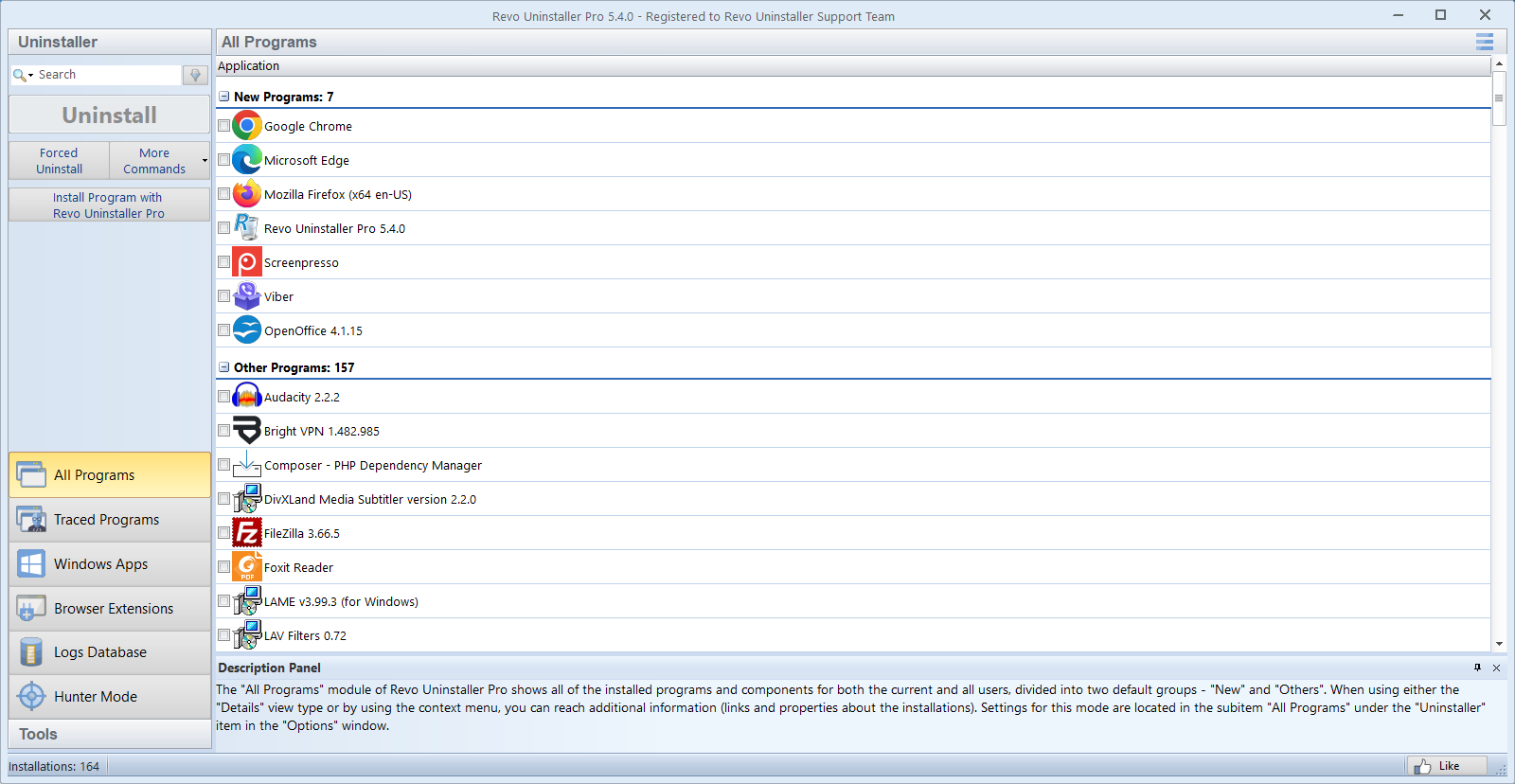
Uninstalling is not the same as sanitizing. Buyers and recipients should not inherit your accounts, tokens, recovery questions, or half-signed-out cloud clients. Revo helps with the cluttered middle of program removal; it does not replace encryption, account hygiene, or a proper reset.
Phase 1: obvious apps, then the silent stragglers
Remove obvious desktop apps first, then hunt sync clients (Dropbox, OneDrive, Google Drive), password managers, banking tools, and VPNs. They stash tokens in profiles you will not see from the desktop icon alone.
Check messaging apps, developer tools with cached credentials (Git, Docker desktop sign-ins, cloud CLIs), and remote-desktop helpers. Each category has its own “sign out everywhere” or revoke-tokens page on the vendor site—do that before you wipe the disk.
Browsers and saved sessions
Sign out of browsers, clear synced profiles where appropriate, and remove saved payment methods if the machine will leave your control. Export bookmarks you still need before you nuke the profile.
Remember secondary profiles: Chrome/Edge profiles for work, Firefox containers, and “guest” Windows accounts you forgot you created for a visitor.
Licenses you are allowed to move
Deactivate licenses you are allowed to transfer—creative suites, security products, and some games bind activations to hardware fingerprints. Read each portal’s deauthorization steps; some cap how many moves you get per year.
Keep a short list of vendors you touched (Adobe, Autodesk, antivirus portals, game stores). That list becomes your “did I actually release this seat?” checklist before you run reset or wipe tools.
Disk encryption and reset
With accounts, browsers, and transferable licenses handled, move to storage-level hygiene. If BitLocker (or another full-disk encryption scheme) is enabled, plan the handoff: suspend protection only when your wipe/reset procedure requires it, and never ship a machine with a known PIN taped to the palm rest.
For high-sensitivity data, prefer a verified wipe or remove the drive entirely. “Quick format” and uninstall-only workflows are not equivalent to certified disposal.
Handoff paperwork
Document serial numbers and OEM recovery key location before you erase partitions. Buyers sometimes need a clean install image plus drivers; your uninstall log is only one slice of that handoff.
After reset, boot once as the new owner would: confirm no old Microsoft account is still the primary identity on the device, and that optional features you removed are actually gone.
Game launchers and DRM
Steam, Epic, Battle.net, EA App, and similar clients keep library metadata, cloud saves, and offline credentials. Sign out, unlink the machine from remote “authorize device” pages where available, and clear download caches if you do not want the next owner to resume your half-finished titles.
Some DRM layers bind to hardware; deactivating in the launcher beats leaving the buyer to fight error codes on first launch.
Email, chat, and two-factor devices
Desktop Outlook profiles, Slack/Teams workspaces, and WhatsApp Web pairing tokens deserve the same care as browsers. Revoke “remember this device” for banking and government portals if you used them on this PC.
If you used the machine as a 2FA backup device for work, remove it from the identity provider’s device list before handoff—uninstalling the authenticator app locally does not automatically untrust the hardware.